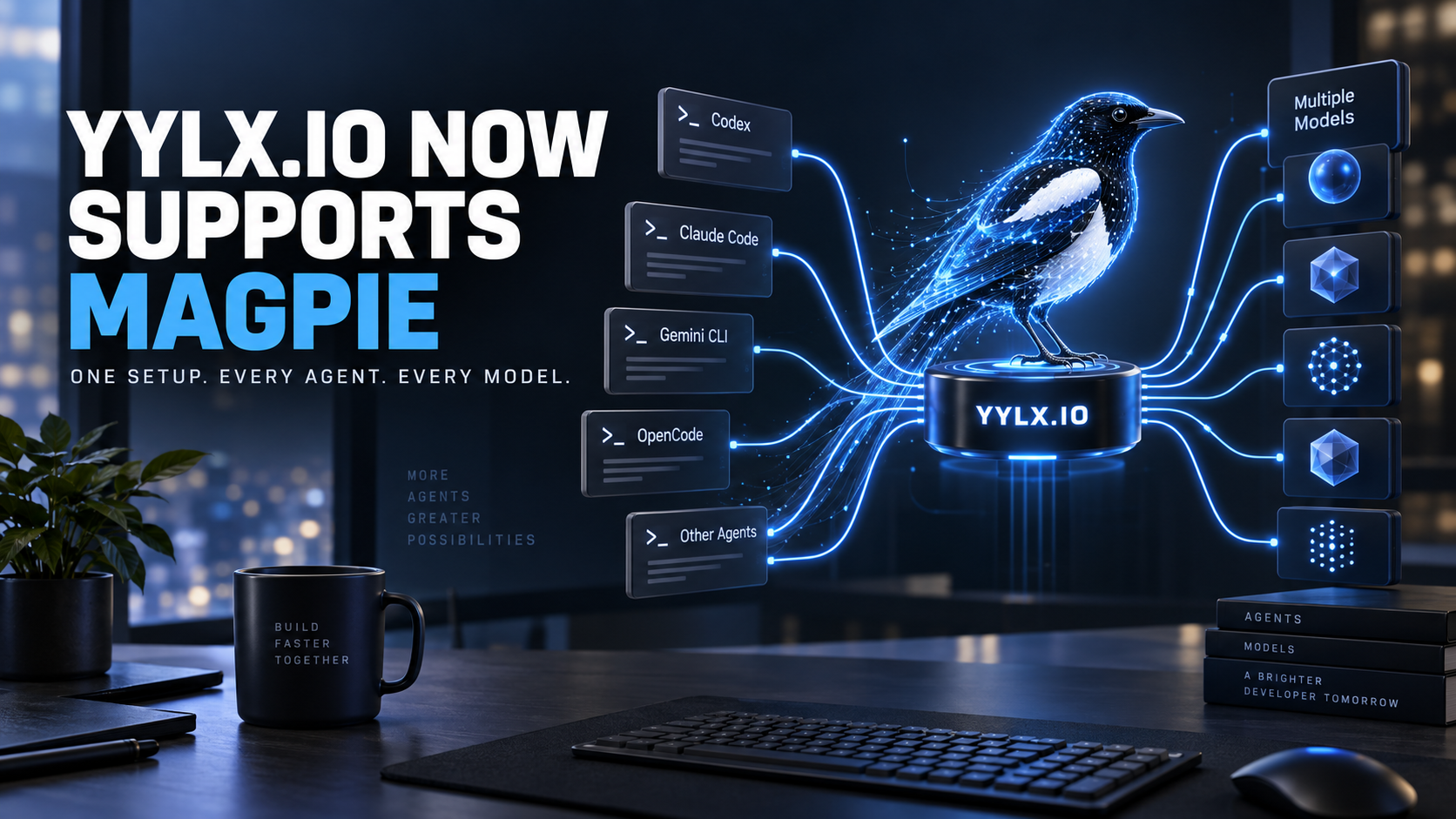
YYLX.IO now supports Magpie. Magpie includes a built-in yylx provider preset with auto, global, and cn region options, allowing users to add a YYLX.IO API key once and make its models available across Codex, Claude Code, Gemini CLI, OpenCode, and many other coding agents.
Magpie also lists YYLX.IO as a sponsor and describes it as one API gateway for Claude and GPT, tuned for Claude Code. For developers who use more than one AI coding tool, this integration removes a familiar source of friction: repeatedly editing Base URLs, environment variables, model names, and configuration files for every agent.
What is Magpie?
Magpie is a free, open-source, MIT-licensed local model gateway and model switcher for macOS, Windows, and Linux.
Different coding agents normally speak different APIs:
- Codex primarily speaks the OpenAI Responses API.
- Claude Code speaks the Anthropic Messages API.
- Gemini CLI speaks the Google Gemini API.
- OpenCode, Pi, Goose, and other tools may use OpenAI Chat or their own provider configuration.
Magpie runs a small gateway on your computer at 127.0.0.1:3425. It speaks OpenAI, Anthropic, and Gemini protocols and translates between them in both directions, including streaming, tool calls, and reasoning. An agent that normally understands only one API can therefore use models from another provider or relay.
In practical terms, Magpie separates the protocol an agent speaks from the provider that serves the model.
What does YYLX.IO support in Magpie enable?
Once YYLX.IO is added as a Magpie provider, users can:
- Run YYLX.IO models from Codex, including Claude, DeepSeek, Kimi, GLM, Qwen, and other compatible options.
- Put GPT, Gemini, or another routed model behind Claude Code.
- Choose models for Gemini CLI, OpenCode, Pi, Goose, Cursor CLI, Copilot CLI, and other supported agents.
- Reuse one YYLX.IO provider across multiple agents.
- Track tokens, cache hits, and cost by agent and model.
- Save profiles such as Budget, Focus, or Work and switch several agents at once.
- Create routing groups that fail over when an account or route is rate-limited, out of credit, or temporarily unavailable.
Previously, each tool needed its own Base URL, key, and model configuration. With Magpie, YYLX.IO is added once and models can be selected from each agent’s picker.
Why do Magpie and YYLX.IO fit together?
The two products solve different layers of the same workflow:
| Component | Primary role |
|---|---|
| Magpie | Local gateway, protocol translation, agent configuration, model selection, and routing |
| YYLX.IO | Claude, GPT, and other model access, API keys, routes, and billing |
| Codex, Claude Code, and other agents | Read projects, call tools, and perform the actual work |
This separation keeps configuration centralized. Changing a model no longer requires learning every agent’s configuration format, and changing a route does not require reinstalling the agent. Magpie edits only the settings it needs and preserves comments, ordering, and indentation where supported.
YYLX.IO is a built-in Magpie provider
Magpie’s official provider documentation includes yylx in its preset list and exposes auto, global, and cn region options. Users do not need to memorize every compatible endpoint. They can choose the YYLX preset, select a region, and paste their own API key.
The region choices can be understood as different connection preferences:
- auto uses the preset’s automatic or default selection.
- global selects the global connection option.
- cn selects the option intended for Chinese network environments.
Endpoints, routes, and available models can evolve. The current Magpie preset and YYLX.IO dashboard should be treated as the source of truth.
How to install Magpie
Magpie provides a desktop app, TUI, and CLI. Mac users can download the native application, while the cross-platform terminal installer is:
curl -fsSL https://usemagpie.ai/install.sh | sh
The documented platform support includes:
- macOS 11 or later on Apple Silicon and Intel.
- Windows 10 or later on x64 and ARM64.
- Linux with GTK 3 and WebKitGTK 4.1 on x86-64 and ARM64.
After installation, open the desktop app or run magpie tui for the full terminal interface.
How to add YYLX.IO to Magpie
Use this workflow:
- Sign in to YYLX.IO and create or copy an API key.
- Install and open Magpie.
- Open Providers and select
+ Add provider. - Search for and choose the YYLX preset.
- Select auto, global, or cn based on your connection needs.
- Paste the YYLX.IO API key, save the provider, and run Test.
- Open Agents and choose a YYLX.IO-backed model for Codex, Claude Code, or another agent.
- End the old session and start a new one. After changing Codex models, restart the Codex app as well.
Magpie asks the provider which models it serves and adds them to the picker. If a newly released model is not listed yet, users can type a model ID manually. The actual model name should always be verified against the YYLX.IO dashboard and Magpie’s provider test.
What configuration does Magpie change?
When a model is selected, Magpie writes to the agent’s own configuration instead of requiring permanent global environment variables:
| Agent | What Magpie mainly writes |
|---|---|
| Claude Code | Base URL, authentication token, and model variables in ~/.claude/settings.json |
| Codex | A Magpie model provider and model list in ~/.codex/config.toml |
| OpenCode, Pi, Crush, and similar agents | A Magpie provider entry and magpie/provider/model selection |
| Gemini CLI | Local gateway address, API-key authentication, and model selection |
Writes are atomic and limited to the required settings. Selecting an agent’s native model or running magpie <agent> default removes Magpie’s wiring and restores the values it replaced.
One YYLX.IO provider across many agents
Magpie names models as provider/model. After adding YYLX.IO, the same provider can serve several agents with different choices:
- Codex can use a strong model for real-repository engineering.
- Claude Code can use a Claude-compatible route or another translated model.
- Quick questions and subagents can use lower-cost models.
- Long-context refactors can be routed to a stronger model.
- Gemini CLI or OpenCode can use a separate model appropriate for the team’s workflow.
Magpie translates the agent’s native request into a protocol the YYLX.IO route accepts, then translates streaming responses and tool results back to the agent.
Routing Groups provide automatic failover
Magpie Routing Groups put multiple models, accounts, or routes behind a single group/<id>. Available strategies include:
- Smart: use the account with allowance that resets soonest while it still has quota.
- In order: use the first member until it cannot answer, then move to the next.
- In turn: rotate conversations across accounts or models.
- Least used: prefer the account with the most allowance remaining.
If a route runs out of credit, hits a rate limit, or starts failing, Magpie can temporarily rest it and try the next member before the agent sees an error. This is useful for users combining YYLX.IO groups with other API keys or subscription accounts.
Failover does not guarantee identical model behavior. Production workflows should test context windows, tool use, reasoning controls, output formats, and billing differences across every group member.
Route each task by intent
Magpie also supports Intent Routing. A group can send:
- Quick questions to a low-cost model.
- Test-writing and bug-fixing tasks to a coding model.
- Long inputs to a large-context model.
- Image requests to a vision-capable model.
- High-reasoning tasks to a stronger model.
At the start of a turn, a small classifier model can choose which intent matches the latest user message. Tool-call rounds remain on the selected model until the turn finishes, helping preserve cache reuse and behavioral consistency.
YYLX.IO supplies access to multiple models; Magpie selects among them for the task. Together they make it practical to use the appropriate model instead of sending every request to the most expensive option.
API key storage and privacy
Magpie’s gateway runs locally. Its documentation states that:
- Keys are stored in
~/.config/magpie/providers.json. - The file is readable only by the current user.
- Magpie does not automatically read keys from shell environment variables.
- Agents connect to the local gateway rather than receiving provider keys directly.
- Import links keep parameters in the URL fragment, which browsers do not send to the Magpie website.
- Imports always require confirmation and do not silently overwrite providers.
Model prompts still travel to the provider that serves the request. Teams should evaluate the data policy of YYLX.IO and every fallback provider used, and should never place production keys in public links, documentation, or chat messages.
Who should use YYLX.IO with Magpie?
- Developers running Codex, Claude Code, Gemini CLI, and OpenCode side by side.
- Users who frequently switch between GPT, Claude, DeepSeek, Kimi, GLM, and Qwen models.
- Teams tired of maintaining several Base URLs and configuration formats.
- Workflows that need cost-, intent-, or quota-aware routing.
- Users who want automatic failover when one route is limited.
- Teams that want centralized token, cache, and cost visibility.
- Developers who save and switch between several agent configurations.
Frequently asked questions
Is Magpie a cloud relay?
No. Magpie is a local gateway and configuration tool. YYLX.IO is the service that provides model routes and API access. Magpie forwards agent requests to the provider selected by the user.
Do I still need a YYLX.IO API key?
Yes. Magpie does not include model credit. It handles translation and routing, while usage is billed to the YYLX.IO account and API key.
Does Magpie need to keep running?
Yes, when an agent is using a Magpie-routed model. Closing the window can leave it running in the menu bar or system tray. magpie serve starts only the gateway.
Why did my model change not take effect?
A running session keeps the model it started with. Start a new session. Codex users should also restart the Codex app because its model list is built at startup.
Do I need to enter YYLX.IO Base URLs manually?
Normally, no. Magpie includes a yylx preset. Select the desired region and paste the API key. The current application and preset remain the source of truth.
Final takeaway
With YYLX.IO support in Magpie, one relay provider can serve Codex, Claude Code, Gemini CLI, OpenCode, and many other coding agents. Magpie handles local protocol translation, agent configuration, model switching, usage visibility, and smart routing. YYLX.IO supplies model access, routes, and a unified API.
If you are repeatedly configuring Base URLs, keys, and model names across AI coding tools, install Magpie, create a key at YYLX.IO, and add it through the built-in YYLX preset. The idea is simple: configure the provider once, then give every agent the right model.
发表回复