Use with CC Switch
CC Switch is a cross-platform configuration manager for AI CLI tools. It centrally manages model provider settings for Claude Code, Codex, Gemini CLI, OpenCode, and more — keeping Base URLs, API Keys, and model names in one place so you can switch between tools and providers with one click, instead of editing environment variables or config files by hand.
Download and install
CC Switch is open source, hosted on GitHub: farion1231/cc-switch.
- Open the Releases page.
- In the latest release's asset list, pick the installer for your OS:
- macOS:
.dmg - Windows:
.msi - Linux:
.AppImage/.deb
- macOS:
- Install it the usual way for your system, and open CC Switch at least once so the one-click import can detect the local installation.
One-click import
One-click import is the recommended path: a single click writes the provider configuration straight into your local CC Switch — no manual field entry.
Steps:
- Make sure CC Switch is installed and has been opened at least once on this machine.
- Go to the API Keys page in the yylx.io console.
- Find the Key you want CC Switch to use.
- Click "Import to CCS" on the right of that row.
- Your browser or system may ask whether to open CC Switch — confirm to finish the import.
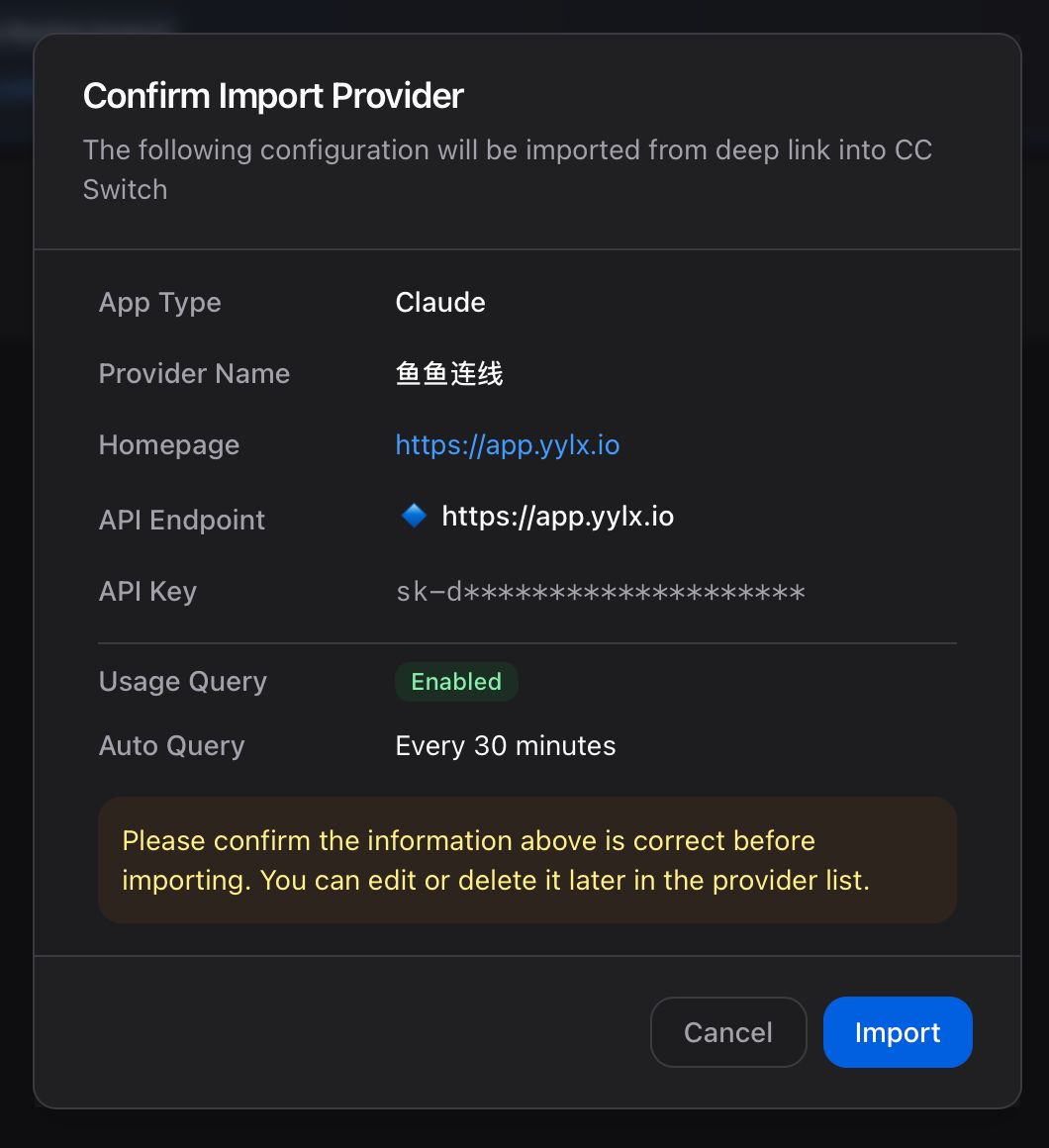
[!WARNING] One-click import writes the current API Key into your local CC Switch configuration. Only do this on your own computer — never on a shared machine or a temporary remote environment.
Add a provider manually
| Field | Value |
|---|---|
| Preset provider | Custom |
| Provider name | yylx.io |
| Website | https://app.yylx.io |
| API Key | A Key created in the yylx.io console |
| API endpoint | https://app.yylx.io (leave "Full URL" unchecked) |