Use with Claude Code
[!WARNING] We recommend CC Switch for managing and switching Claude Code provider configurations — no manual environment-variable or config-file editing needed.
Claude Code uses Anthropic-specific settings. When connecting through yylx.io, do not use the OpenAI-compatible address https://app.yylx.io/v1 — use the Claude Code configuration shown in the console's "Use Key" dialog instead.
[!TIP] If you use both an official Claude subscription and a yylx.io API Key, keep the two setups in separate terminal profiles or CC Switch profiles so the environment variables don't overwrite each other.
Copy the configuration from the console
In the yylx.io console, open the "API Keys" page, find the Key you want Claude Code to use, and click "Use Key" on the right. In the dialog, choose Claude Code, then pick macOS / Linux, Windows CMD, or PowerShell to match your system.
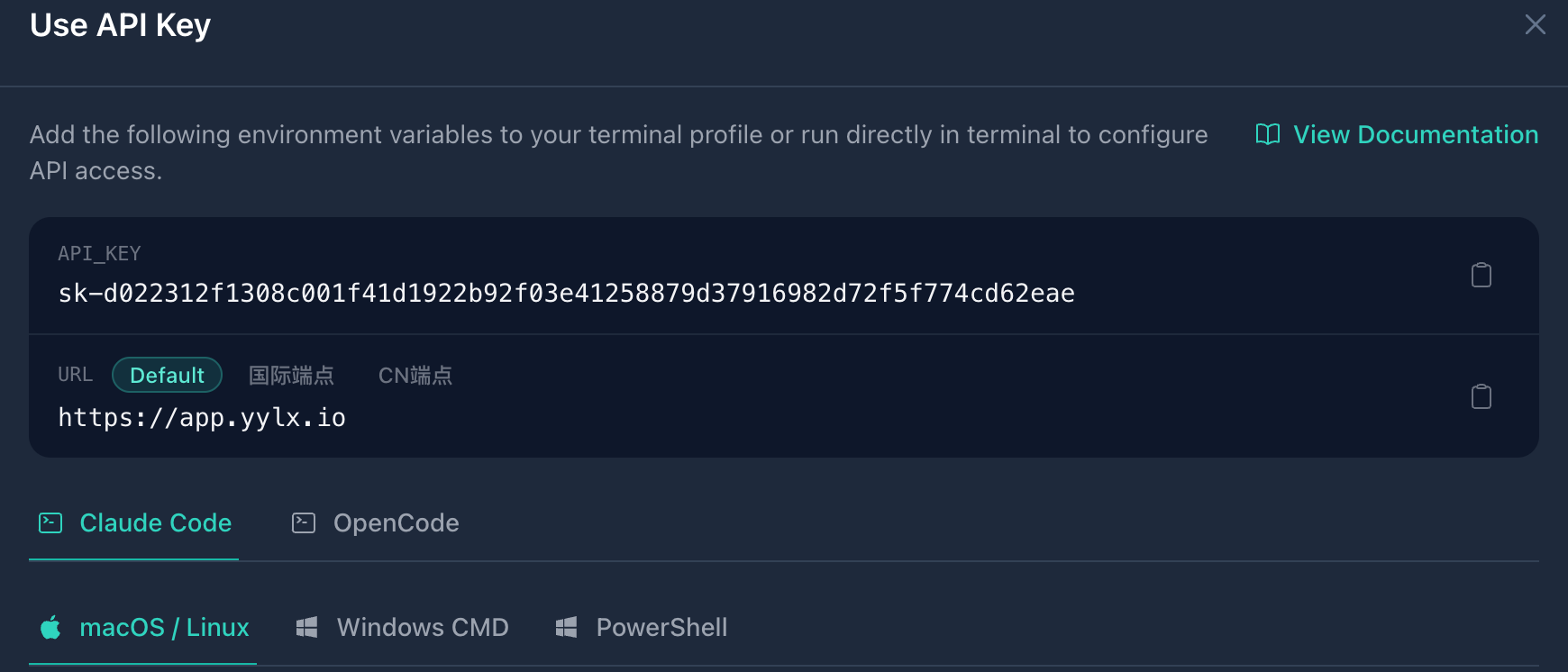
The configuration shown there automatically includes your current Key. Examples in the docs use sk-your-api-key instead of a real Key.
Temporary environment variables
For a quick test, run this in your current terminal:
export ANTHROPIC_BASE_URL="https://app.yylx.io"
export ANTHROPIC_AUTH_TOKEN="sk-your-api-key"
export CLAUDE_CODE_DISABLE_NONESSENTIAL_TRAFFIC=1
claude
This only applies to the current terminal session — the variables are gone once you close the terminal.
If your system or Claude Code version expects ANTHROPIC_API_KEY, follow the console instructions and use:
export ANTHROPIC_BASE_URL="https://app.yylx.io"
export ANTHROPIC_API_KEY="sk-your-api-key"
export CLAUDE_CODE_DISABLE_NONESSENTIAL_TRAFFIC=1
claude
Don't mix the two auth variables. Prefer whichever version the console's "Use Key" dialog gives you.
Write it into the Claude Code settings
For long-term use, put the environment variables in ~/.claude/settings.json:
{
  "env": {
    "ANTHROPIC_BASE_URL": "https://app.yylx.io",
    "ANTHROPIC_AUTH_TOKEN": "sk-your-api-key",
    "CLAUDE_CODE_DISABLE_NONESSENTIAL_TRAFFIC": "1",
    "CLAUDE_CODE_ATTRIBUTION_HEADER": "0"
  }
}
Save, then restart Claude Code to apply the new configuration.
Pick a model
If Claude Code needs an explicit model, use the model name that matches the Claude/Anthropic access method in the console.
claude --model your-claude-compatible-model
The model name must match the console exactly.
Write it into your shell config
If you prefer managing this through shell environment variables, add the settings to ~/.zshrc or ~/.bashrc:
export ANTHROPIC_BASE_URL="https://app.yylx.io"
export ANTHROPIC_AUTH_TOKEN="sk-your-api-key"
export CLAUDE_CODE_DISABLE_NONESSENTIAL_TRAFFIC=1
Save, then run:
source ~/.zshrc
Then start again:
claude
Notes
Claude Code reads the environment variables of the current terminal. After switching providers, open a new terminal or confirm the variables have been updated. If you manage configuration with CC Switch, also confirm the active profile has been switched to yylx.io.
Use the root address the console gives you as the Base URL — don't append full endpoint paths such as /v1/messages yourself.
[!WARNING] Never put an API Key into a project repository's
.env, README, or screenshots. Claude Code reads variables from the current terminal environment — after setup, be careful not to expose the Key to other projects.
Troubleshooting
| Problem | Fix |
|---|---|
| Authentication fails | Make sure only one of ANTHROPIC_AUTH_TOKEN / ANTHROPIC_API_KEY is set |
| Wrong address | Use the root address from the console as the Base URL — no full endpoint paths |
| Requests still go to the official service | Open a new terminal and check for stale environment variables |
| Model unavailable | Switch to a Claude-compatible model name available in the console |
| Not working in VS Code | Close and reopen VS Code so the extension picks up the new Claude Code configuration |