Access Overview
Connecting to yylx.io usually involves three pieces of information: a Base URL, an API Key, and a model name.
[!INFO] Different clients name these fields differently — API address, Base URL, Endpoint, and interface address usually mean the same kind of setting.
OpenAI-compatible access
Most clients use an OpenAI-compatible configuration:
| Field | Value |
|---|---|
| Base URL | https://app.yylx.io/v1 |
| API Key | An API Key created in the console |
| Model | A model name from the console's model list |
Do not put a full endpoint path in the Base URL. For example, never enter https://app.yylx.io/v1/chat/completions.
Tools that work well with OpenAI-compatible access include Codex, Cursor, Cherry Studio, and any client that supports a custom OpenAI provider. The setting may be labeled API Address, Endpoint, Override Base URL, or Provider URL — they all take the same address.
Quick connectivity test
curl https://app.yylx.io/v1/models \
  -H "Authorization: Bearer sk-your-api-key"
If a model list comes back, the OpenAI-compatible endpoint, your Key, and your network connection are all working.
Claude/Anthropic access
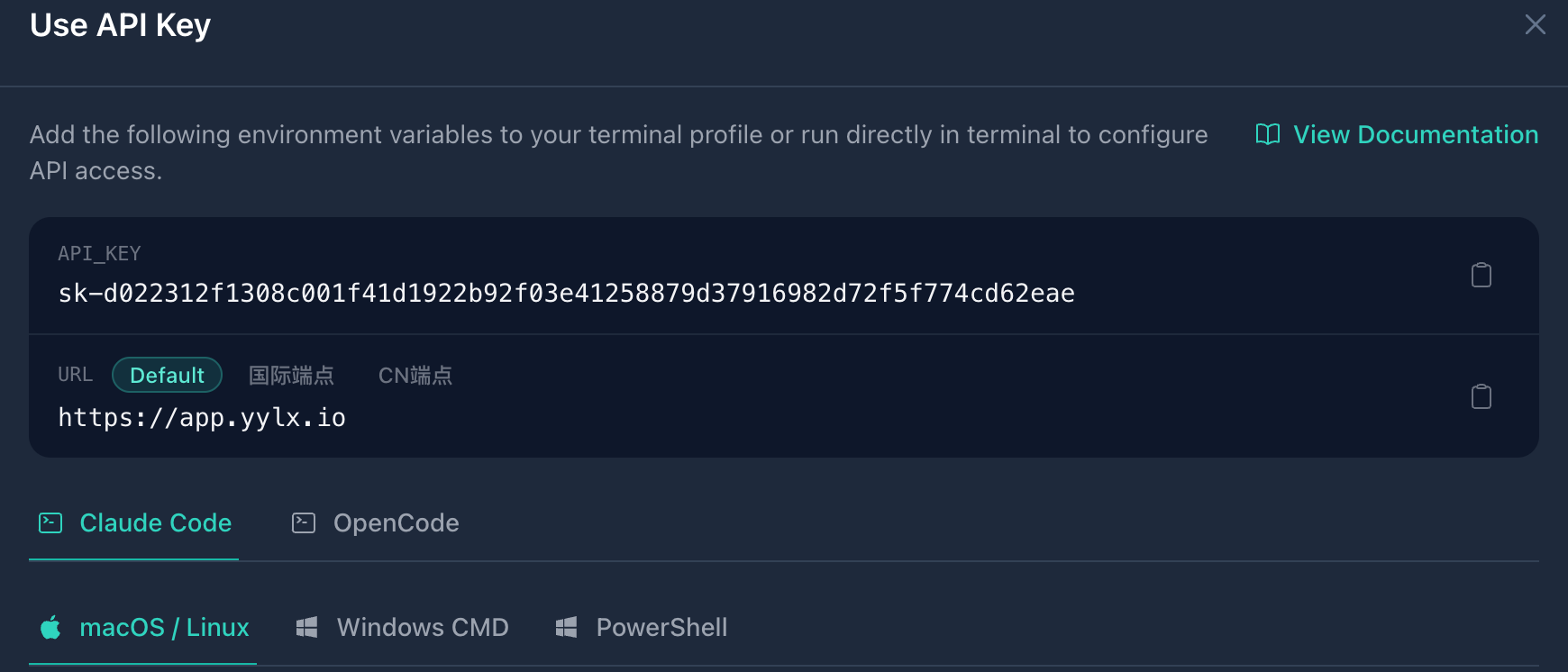
Tools like Claude Code use Anthropic-specific environment variables or settings. Always use the Claude/Anthropic address shown in the console.
Click "Use Key" next to a Key in the API Keys list to see the Claude Code configuration. Copy the actual Key from the console — the docs only ever show placeholders.
| Field | Description |
|---|---|
| Anthropic Base URL | The Claude/Anthropic address shown in the console |
| Anthropic Token/API Key | An API Key created in the console |
| Model | A Claude model name supported by the console |
Claude Desktop can configure a third-party Provider / Gateway in developer mode. Enter the yylx.io Gateway address and your API Key, save, and restart the client when prompted.
Recommended setup order
For your first configuration, follow these steps:
- Create a new API Key and give it a clear, descriptive name.
- Check whether your tool uses the OpenAI-compatible protocol or the Claude/Anthropic protocol.
- Fill in the Base URL, API Key, and model name as described on the matching page.
- Send a short test message before starting long-context or high-volume tasks.
- Check the yylx.io usage log to confirm the request came from the Key you just configured.
Which page to use
| Scenario | Recommended page |
|---|---|
| Switching between multiple CLI tools | Use with CC Switch |
| Mainly using Claude Code | Use with Claude Code |
| Using the Claude desktop app | Use with Claude Desktop |
| Mainly using Codex CLI | Use with Codex |
| Enhancing the Codex desktop app with Codex++ | Use with Codex++ |
| Using Cursor in your editor | Use with Cursor |
| A graphical chat client | Use with Cherry Studio |
[!WARNING] If a tool has both an official Key and a yylx.io Key configured, double-check which provider is actually active so requests don't go to the wrong account.