Use with Magpie
Magpie is an open-source model manager for AI coding agents, available as a menu bar app, a terminal UI, or a plain CLI. It runs a local gateway on your machine that serves models to agents like Claude Code, Codex, Gemini CLI, OpenCode, and Cursor CLI, translating between OpenAI and Anthropic API formats automatically — so you can switch each agent's model and provider in one place, instead of editing environment variables or config files by hand.
Download and install
Magpie's website is usemagpie.ai; the source is hosted on GitHub: yetone/magpie.
- Open the Magpie website and download the build for your OS:
- macOS: Apple Silicon / Intel
- Windows: x64 / ARM
- Linux: x86-64 / ARM64 (requires GTK 3 and WebKitGTK 4.1)
On macOS and Linux you can also install from the terminal:
curl -fsSL https://usemagpie.ai/install.sh | shOpen Magpie at least once after installing, so the one-click import can launch it.
[!INFO] One-click import requires Magpie 0.1.8 or later — upgrade first if you're on an older version.
One-click import
One-click import is the recommended path: a single click writes the provider configuration straight into your local Magpie — no manual field entry.
Steps:
- Make sure Magpie is installed and has been opened at least once on this machine.
- Go to the API Keys page in the yylx.io console.
- Find the Key you want Magpie to use.
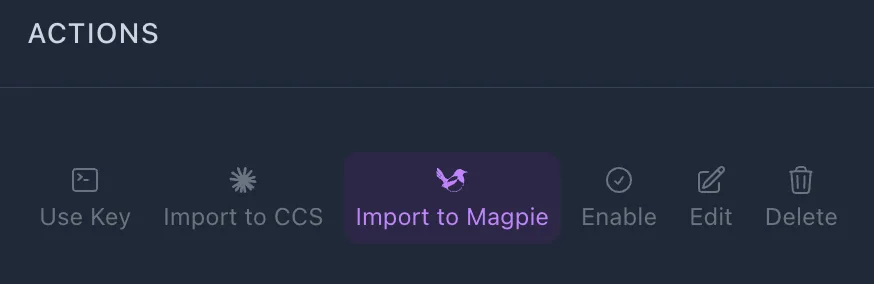
- Click "Import to Magpie" on the right of that row.
- Your browser opens an import confirmation page. Check that "Sends to" shows
app.yylx.io, then click "Open in magpie". If Magpie isn't installed yet, click "Don't have magpie? Download it" to get it first.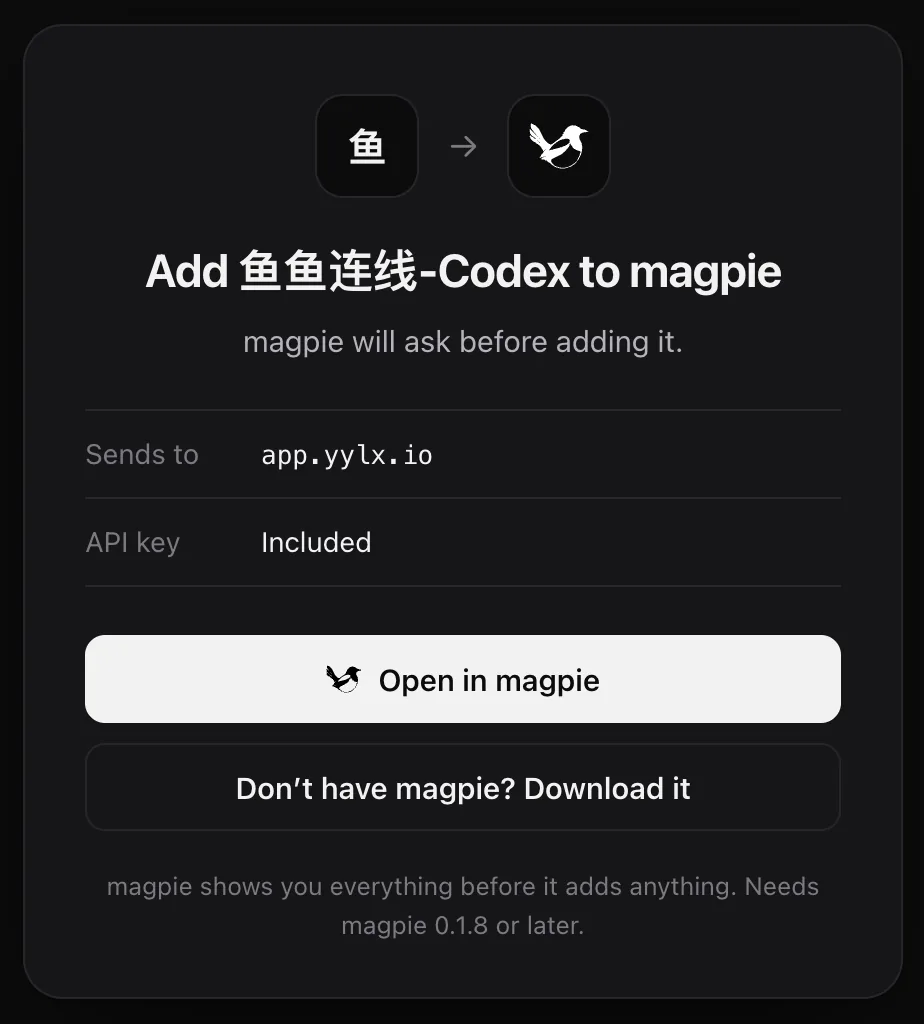
- Your browser or system may ask whether to open Magpie. Once confirmed, Magpie shows a dialog with the provider name, the address requests are sent to, and the model list. Review it and click "Add" to finish; if you've imported the same provider before, the button reads "Replace" and overwrites the existing configuration.
[!WARNING] One-click import writes the current API Key into your local Magpie configuration. Only do this on your own computer — never on a shared machine or a temporary remote environment.