Create an API Key
An API Key is your access credential for the yylx.io API. Whether you plan to use Claude Code, Codex, Cursor, Cherry Studio, or manage several tools through CC Switch, you first need a working Key from the console.
We recommend a separate API Key per client — one for Claude Code, one for Cursor, one for Cherry Studio, and so on. This has two benefits: you can see which tool the usage comes from, and if one client leaks you only need to disable that Key without affecting the others.
[!WARNING] An API Key is equivalent to an account credential. A leaked Key can let others consume your quota — if that happens, delete the old Key and create a new one immediately.
Open the API Keys page
Sign in to the yylx.io console, then go to "API Keys" under "My Account" in the left menu. In the top-right corner you can refresh the list or click "Create Key" to add a new one.

If old Keys are already in the list, avoid reusing one Key across all tools. It's better to create per-tool Keys such as claude-code-mac, codex-work, or cursor-desktop.
Create a Key
Clicking "Create Key" opens a dialog. At minimum, enter a name and pick a group; the other limits are optional and can be enabled as needed.
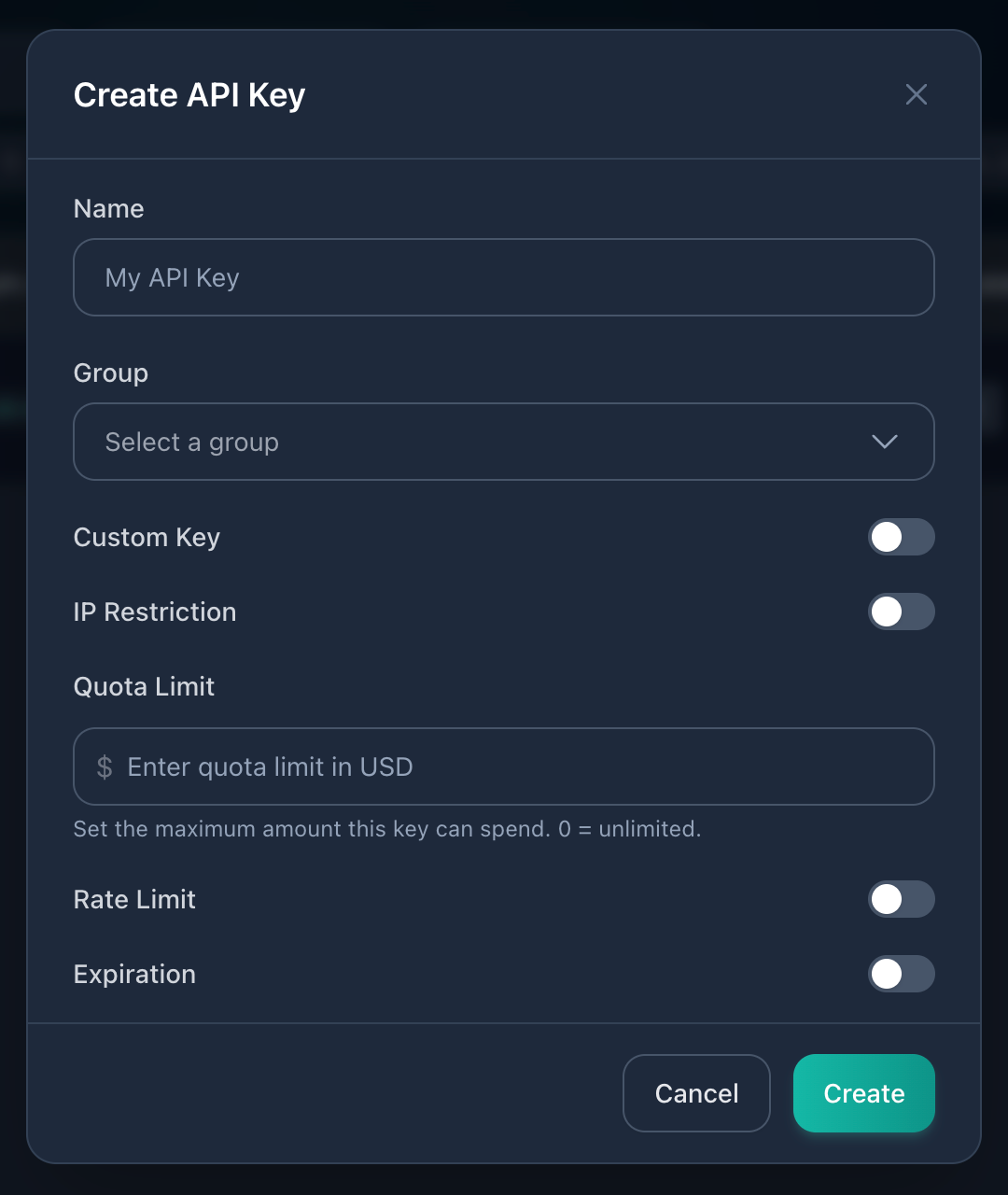
Recommended order:
- Name: something that makes the purpose obvious, e.g.
macbook-codex,cursor-work,cherry-studio-home. - Group: the model route or plan group you want to use. Rates and available models can differ between groups — follow what the console shows.
- Quota limit (optional): fine to skip for personal testing; set a small quota for temporary projects, team members, or rarely-used devices.
- Rate limit (optional): only enable it if you need to cap concurrency or guard against a runaway tool.
- Key expiration (optional): set an expiry for temporary test Keys; long-lived local-tool Keys can stay permanent.
- Confirm with "Create", then copy and save the Key immediately.
An API Key is usually shown in full only once. If you forget to save it, delete the old Key and create a new one.
[!TIP] Avoid enabling "Custom key" unless you know exactly why you need a fixed Key string. Auto-generated Keys are safer and less likely to be confused with old configurations.
Naming suggestions
| Scenario | Example name |
|---|---|
| Codex CLI | codex-macbook |
| Claude Code | claude-code-work |
| Cursor | cursor-desktop |
| Cherry Studio | cherry-studio-home |
| Team member | alice-dev |
Store and use
After creating a Key, store it in a password manager, your system keychain, or an environment variable readable only on your machine. Never put a Key in public repositories, screenshots, chat logs, or shared documents.
To set up Claude Code, click "Use Key" in the API Keys list and the console will show the matching environment variables and config snippets. To set up CC Switch, click "Import to CCS" for one-click import.
Test the Key
After creating a Key, test the OpenAI-compatible endpoint with:
curl https://app.yylx.io/v1/models \
  -H "Authorization: Bearer sk-your-api-key"
If a model list comes back, the API Key and Base URL are working.
If the test fails, check these four things first:
| Check | Details |
|---|---|
| Key completeness | No missing characters, no extra spaces or line breaks from copying |
| Group availability | The group must be enabled and include the model you're calling |
| Balance or quota | Account balance, subscription quota, and Key quota can all block requests |
| Base URL | OpenAI-compatible clients usually use https://app.yylx.io/v1 |
Ongoing maintenance
Clean up unused Keys regularly. Disable or delete any Key that is long unused, of unclear purpose, or possibly leaked. Deleting a Key immediately invalidates it wherever it's configured — you'll need to create a new one and update the client configuration.